Running OpenClaw on a Free Oracle VPS with Tailscale
I wanted a persistent OpenClaw Gateway running 24/7 that I could access from anywhere on my Tailscale network. Oracle Cloud’s Always Free tier gives you a surprisingly beefy ARM VM for nothing, and Tailscale means I don’t need to expose anything to the public internet.
Here’s how I set it up.
The Architecture
The goal is simple: OpenClaw Gateway running as a systemd service, accessible only through Tailscale. No SSH exposed to the internet. No open ports for bots to scan.
- VM: Oracle Cloud ARM (4 OCPUs, 24GB RAM - all free)
- OS: Ubuntu 24.04
- Gateway: Native OpenClaw install, bound to localhost
- Access: Tailscale Serve proxies HTTPS to the gateway
- SSH: Disabled entirely, replaced with Tailscale SSH
Part 1: Spin Up the Oracle VM
Create an account at Oracle Cloud if you haven’t. The signup asks for a credit card but you won’t be charged for Always Free resources.
In the console, go to Compute → Instances → Create Instance:
- Image: Ubuntu 24.04 (aarch64)
- Shape: VM.Standard.A1.Flex (Ampere ARM)
- OCPUs: 2-4 (all free)
- Memory: 12-24 GB (all free)
- Boot volume: 50 GB
- SSH key: Add your public key
Hit Create. If you get “Out of capacity”, try a different availability domain or wait. Oracle’s free tier is popular.
Note the public IP once it’s running.
Part 2: Initial Setup
SSH in with the public IP (we’ll switch to Tailscale SSH later):
ssh ubuntu@YOUR_PUBLIC_IP
Update everything and install build tools:
sudo apt update && sudo apt upgrade -y
sudo apt install -y build-essential
Set a hostname and enable lingering so user services survive logout:
sudo hostnamectl set-hostname openclaw-vnic
sudo loginctl enable-linger ubuntu
Part 3: Install Tailscale
curl -fsSL https://tailscale.com/install.sh | sh
sudo tailscale up --ssh --hostname=openclaw-vnic
Verify it’s connected:
tailscale status
From now on, connect via your tailnet: ssh ubuntu@openclaw-vnic
Part 4: Install OpenClaw
I tried Docker first. Don’t. It caused issues with proxy headers and device pairing that took forever to debug. The native install works much better for this setup.
curl -fsSL https://openclaw.bot/install.sh | bash
source ~/.bashrc
Run the onboarding wizard:
openclaw onboard
When prompted, select:
- Mode: Manual
- Gateway: Local gateway (this machine)
- Workspace:
/home/ubuntu/.openclaw/workspace - Port: 18789
- Bind: Loopback (127.0.0.1)
- Auth: Token
- Tailscale exposure: Serve
- Reset Tailscale on exit: No
- Install Gateway service: Yes
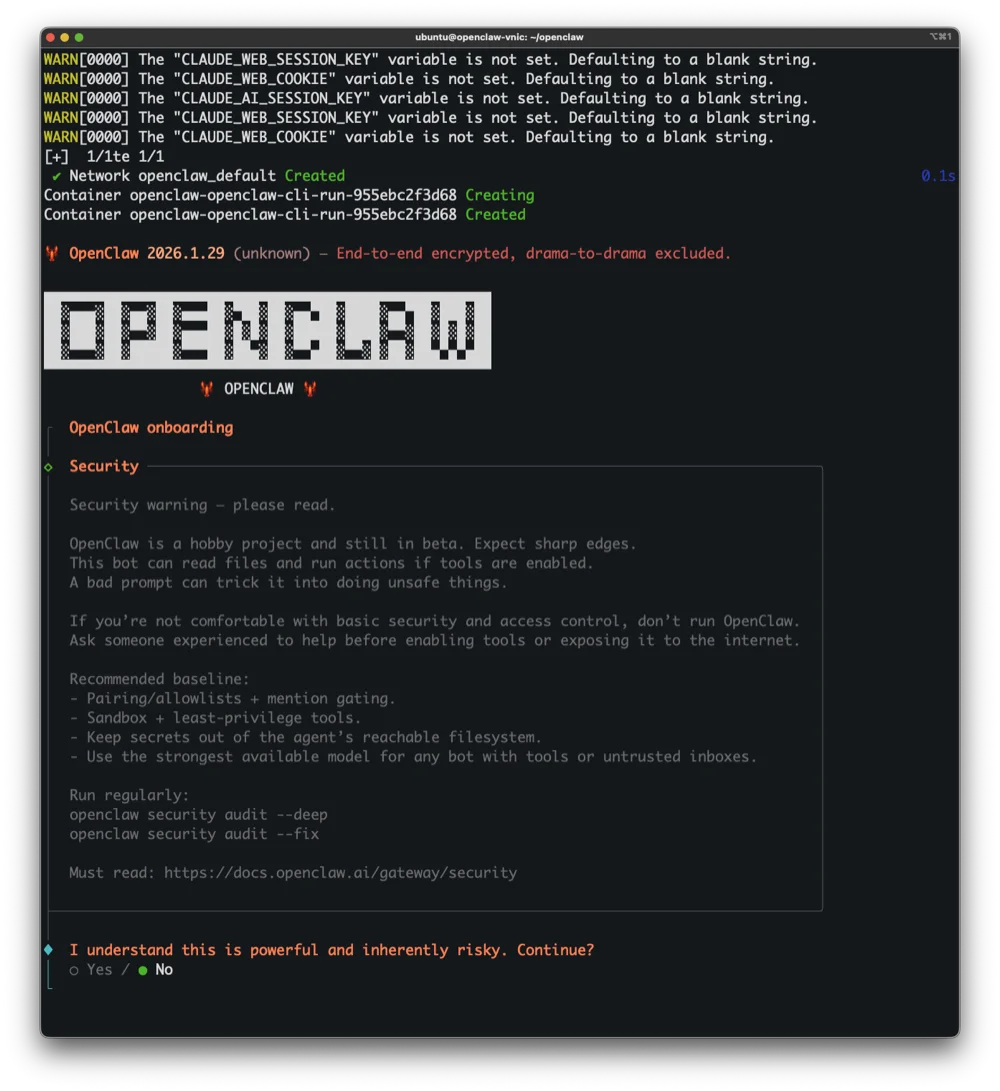
The onboarding shows a security warning. Read it. OpenClaw can run shell commands and access files, so binding to loopback and requiring auth isn’t optional.
Part 5: Configure the Gateway
Tailscale Serve runs locally and proxies requests. Tell the gateway to trust those headers:
openclaw config set gateway.trustedProxies '["127.0.0.1"]'
Generate a secure token:
openclaw config set gateway.auth.token "$(openssl rand -hex 32)"
Add your Anthropic API key:
echo 'ANTHROPIC_API_KEY=sk-ant-api03-YOUR-KEY' >> ~/.openclaw/.env
Restart the gateway:
systemctl --user restart openclaw-gateway
Verify everything’s running:
systemctl --user status openclaw-gateway
tailscale serve status
You should see Tailscale serving HTTPS on your tailnet, proxying to localhost:18789.
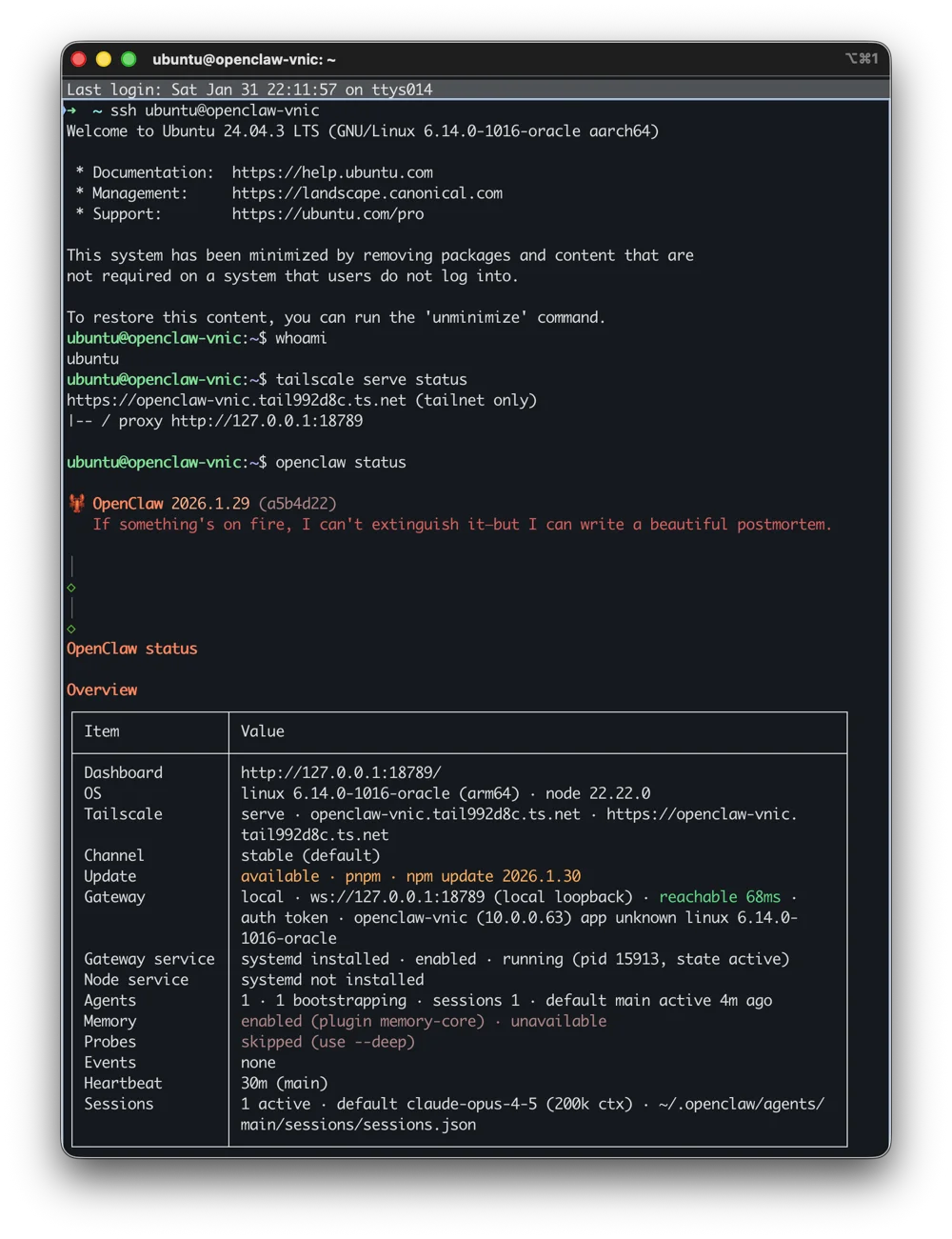
Once everything’s running, openclaw status gives you a full overview: gateway health, active sessions, model in use, and Tailscale connectivity.
Part 6: Lock It Down
Any server with a public IP gets hammered by bots within minutes. They scan the entire IPv4 space looking for open SSH ports and run brute-force attacks constantly. Let’s eliminate that attack surface.
Run OpenClaw’s security audit
openclaw security audit --deep
openclaw security audit --fix
Disable services you don’t need
sudo systemctl disable --now rpcbind
sudo systemctl disable --now rpcbind.socket
Switch to Tailscale SSH
First, make sure Tailscale SSH works from another device on your tailnet:
ssh ubuntu@openclaw-vnic
If it works, kill system SSH:
sudo systemctl stop ssh.service
sudo systemctl mask ssh.service ssh.socket
sudo pkill -9 sshd
Verify it’s gone:
sudo ss -tlnp | grep '0.0.0.0:22'
# Should return nothing
Lock config permissions
chmod 700 ~/.openclaw
chmod 600 ~/.openclaw/openclaw.json
Verify no public listeners
sudo ss -tlnp | grep '0.0.0.0' | grep -v '127.0.0'
# Should only show Tailscale (100.x.x.x addresses)
Lock down the VCN firewall
This is the network-level firewall. Traffic gets blocked before it even touches your VM.
- Go to OCI Console → Networking → Virtual Cloud Networks
- Click your VCN → Security tab → Default Security List
- Delete the SSH rule (TCP 22 from 0.0.0.0/0)
- Add a Tailscale rule:
- Source:
0.0.0.0/0 - Protocol: UDP
- Port: 41641
- Source:
- Keep the ICMP rules for network diagnostics
Your ingress rules should now be:
| Protocol | Port | Source | Purpose |
|---|---|---|---|
| UDP | 41641 | 0.0.0.0/0 | Tailscale |
| ICMP | 3,4 | 0.0.0.0/0 | Fragmentation needed |
| ICMP | 3 | 10.0.0.0/16 | Internal diagnostics |
Restrict instance metadata (optional)
Switch to IMDSv2 only to prevent SSRF attacks:
- OCI Console → Compute → Instances → Your instance
- Instance metadata service → Edit
- Change to Version 2 only
Part 7: Access the Dashboard
Get your token:
openclaw config get gateway.auth.token
From any device on your Tailscale network, hit:
https://openclaw-vnic.YOUR-TAILNET.ts.net/?token=YOUR_TOKEN
The dashboard reads the token, stores it in localStorage, and strips it from the URL.
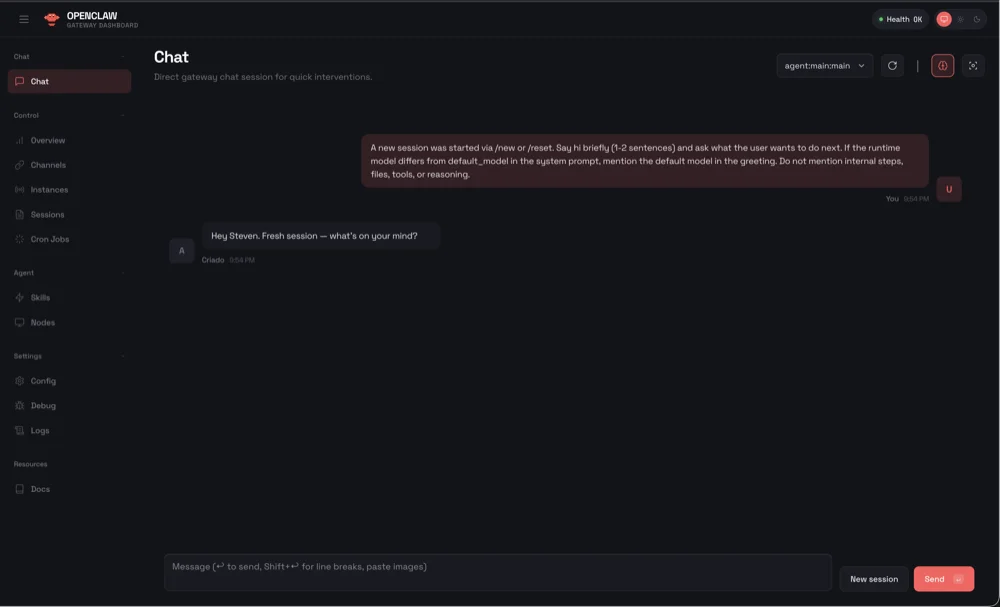
The dashboard gives you chat, session management, channel configuration, logs, and settings all in one place.
Part 8: Telegram Setup (Optional)
If you’re using the Telegram channel, pairing works like this:
When someone DMs your bot, they get a pairing code. Approve it:
openclaw pairing list telegram
openclaw pairing approve telegram CODE
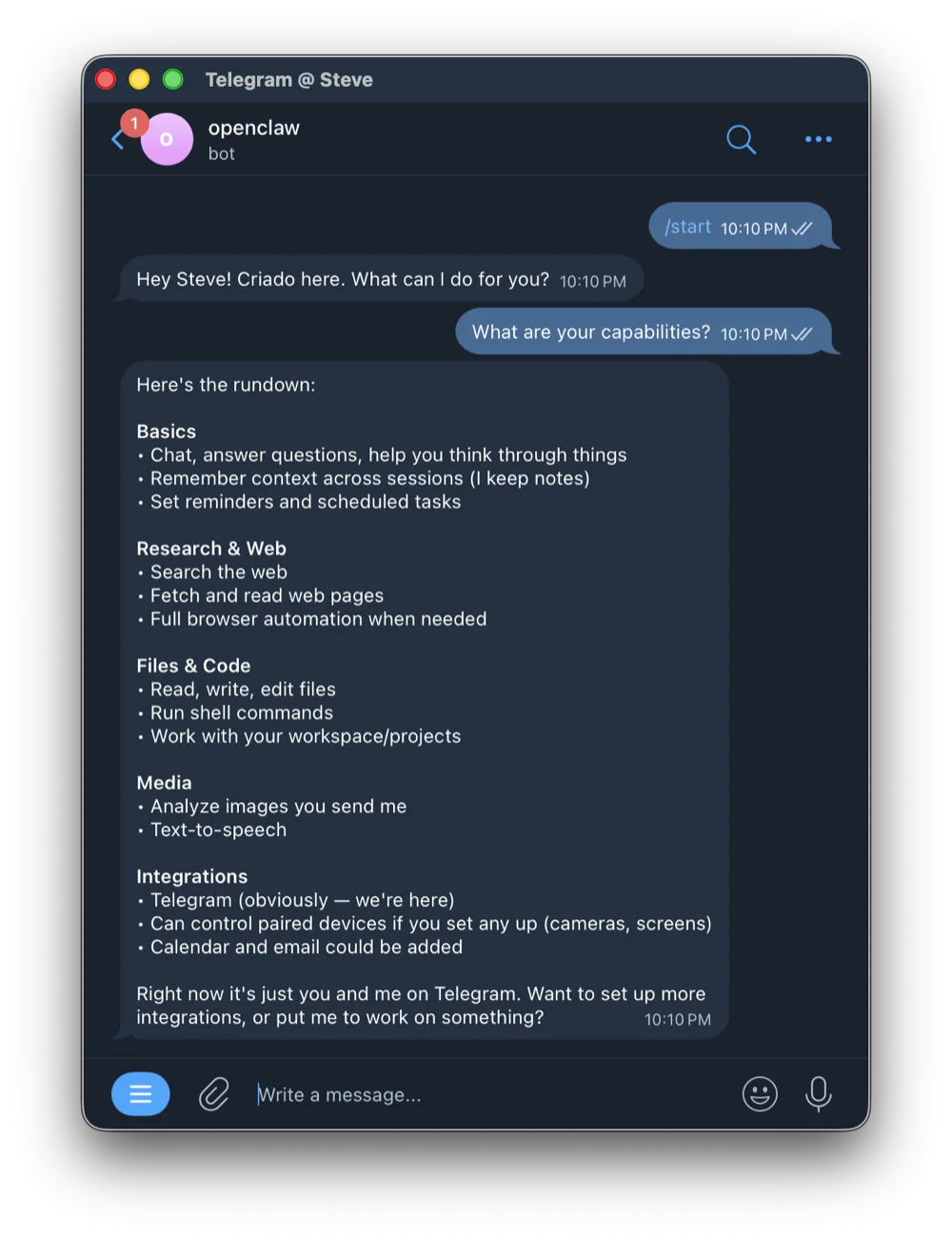
Once paired, you can chat with OpenClaw directly in Telegram. It has full access to your gateway’s capabilities.
Maintenance Cheatsheet
| Task | Command |
|---|---|
| Status | systemctl --user status openclaw-gateway |
| Logs | journalctl --user -u openclaw-gateway -f |
| Restart | systemctl --user restart openclaw-gateway |
| Update | openclaw update |
| Security audit | openclaw security audit --deep |
| Get token | openclaw config get gateway.auth.token |
| SSH to VPS | ssh ubuntu@openclaw-vnic |
| Backup | tar -czvf openclaw-backup.tar.gz ~/.openclaw |
| System updates | sudo apt update && sudo apt upgrade -y |
Troubleshooting
Gateway won’t start?
openclaw doctor --non-interactive
journalctl --user -u openclaw-gateway -n 50
Can’t reach the UI?
tailscale serve status
curl http://localhost:18789
Locked out entirely?
Use Oracle’s console connection: OCI Console → Compute → Instances → Console connection
What’s Blocked vs Allowed
Blocked:
- SSH from internet (VCN + OS level)
- All TCP ports from internet
- Direct HTTP/HTTPS access
- Port scanning and brute force
- SSRF via metadata (v1 disabled)
Allowed:
- Tailscale UDP (port 41641)
- ICMP for diagnostics
- All outbound connections
The result: a free, persistent, properly secured gateway accessible only from your tailnet. No monthly bills, no exposed ports, no waking up to find your server compromised.