On-Demand GPU Inference: Wake-on-LAN, Ollama, and Telegram Control
This is Part 5 of the homelab series. Part 1 set up Proxmox and AdGuard. Part 2 added the reverse proxy and TLS. Part 3 added monitoring and a dashboard. Part 4 added the OptiPlex 5060 as a second node. Start there if you haven’t.
The 5060 is online, monitored, and ready for workloads. The first one is the most interesting: local LLM inference on a real GPU.
Running AI models locally has obvious appeal. No API costs, no rate limits, no sending sensitive data to a third party. The problem is hardware. The 5060’s CPU can technically run a 7B parameter model through Ollama, but “technically” is doing a lot of heavy lifting. Inference is painfully slow, and anything larger than 7B doesn’t fit in memory.
My Windows desktop has an RTX 5070 Ti with 16GB of VRAM. That can run 30B+ parameter models at usable speed, including strong coding models like CodeQwen 32B and DeepSeek Coder 33B. But I don’t want it running 24/7 burning 300W at idle when I’m only using it for inference a few times a day.
The solution is a GPU bridge. A lightweight service on the 5060 sits in front of Ollama, accepts inference requests from other homelab services, and wakes the desktop via Wake-on-LAN when it’s needed. When the desktop has been idle for a while, it goes back to sleep. The whole thing is controlled through Telegram so I can spin it up from my phone.
The Architecture
┌──────────────────────────────────────────────────────────────────┐
│  ALWAYS ON                                                        │
│                                                                    │
│  Dell Wyse 5070 - Proxmox (pve01)                                 │
│  ├── CT 100 - AdGuard + Unbound                                  │
│  ├── CT 101 - NPM, Uptime Kuma, ntfy, Homepage                   │
│  └── Tailscale                                                     │
│                                                                    │
│  Dell OptiPlex 5060 Micro - Proxmox (pve02)                      │
│  ├── CT 200 - GPU Bridge + Telegram Bot     ← NEW                │
│  │   ├── Ollama API proxy (:11434)                                │
│  │   ├── Telegram bot (/gpu on, /gpu off, /gpu status)           │
│  │   └── WoL sender                                               │
│  └── Tailscale                                                     │
│                                                                    │
├──────────────────────────────────────────────────────────────────┤
│  ON-DEMAND                                                        │
│                                                                    │
│  Windows Desktop - RTX 5070 Ti                                    │
│  192.168.5.88                                                      │
│  ├── Ollama (:11434, bound to 0.0.0.0)                            │
│  ├── Idle timer (PowerShell scheduled task)                       │
│  └── Tailscale                                                     │
└──────────────────────────────────────────────────────────────────┘
The request flow:
- A homelab service (or you via the Ollama API) sends a request to the GPU bridge on the 5060
- The bridge checks if the desktop is awake by pinging Ollama’s health endpoint
- If awake, it forwards the request directly and returns the response
- If asleep and GPU mode is “on”, it sends a WoL magic packet, waits for Ollama to come online (30-60 seconds), then forwards the request
- If GPU mode is “off”, it returns a “GPU offline” response immediately
Telegram gives you manual control:
/gpu on- wake the desktop, enable inference/gpu off- sleep the desktop immediately/gpu status- check if it’s awake, what model is loaded, VRAM usage
The safety net: A PowerShell script on the Windows desktop monitors for true inactivity. If GPU mode is “on” but nothing has needed inference for 15 minutes, nobody’s at the keyboard, and no games are running, it puts itself to sleep and notifies you via Telegram. So if you /gpu on at 10pm and forget to /gpu off, it doesn’t run all night.
Prerequisites
Before starting, you need:
- Everything from Parts 1-4 working (both Proxmox nodes, NPM, monitoring, dashboard)
- A Windows desktop with an NVIDIA GPU on the same LAN (this guide uses an RTX 5070 Ti, but any CUDA-capable GPU works)
- The desktop’s MAC address (we’ll find it during setup)
- A static IP or DHCP reservation for the desktop (this guide uses
192.168.5.88) - A Telegram bot token (we’ll create a new bot for GPU control)
- About 1-2 hours
Part 1: Prepare the Windows Desktop
1.1 - Enable Wake-on-LAN in BIOS
Power on your desktop and enter BIOS setup (usually DEL or F2 depending on your motherboard).
My desktop has an MSI MAG X870E Tomahawk WiFi (MS-7E59), so these are the exact steps for that board. Your path will be different on other motherboards, but the setting names are usually similar.
For the MSI MAG X870E Tomahawk WiFi:
- Enter BIOS and switch to Advanced mode (press F7 if you’re in EZ mode)
- Click the Advanced tab on the left
- Open Power Management Setup:
- ErP Ready: Disabled (ErP mode cuts all standby power, which kills the NIC’s ability to listen for WoL packets while the machine is asleep)
- Restore After AC Power Loss: Power Off (default is fine)
- System Power Fault Protection: Disabled (default is fine)
- Back out, then open Wake Up Event Setup (two items below Power Management Setup):
- Wake Up Event By: BIOS (leave on BIOS, not OS. BIOS handles wake events directly, which is more reliable since the OS isn’t running when you need to wake)
- Resume by PCI-E Device: Enabled
- Resume by RTC Alarm and Resume by USB Device can stay at their defaults
- Enable Shutdown Wake-on-LAN if you see it. This keeps the NIC powered to listen for magic packets even when the PC is fully shut down, not just asleep. Without it, WoL only works from sleep states.
The PCI-E setting is what matters because your Ethernet controller sits on the PCI-E bus, and that’s what receives the WoL magic packet while the machine is asleep.
For other motherboards, the setting is usually in one of these locations:
- ASUS: Advanced > APM Configuration > Power On By PCI-E > Enabled
- Gigabyte: Settings > Platform Power > Wake on LAN > Enabled
- ASRock: Advanced > ACPI Configuration > PCI Devices Power On > Enabled
On any board, also look for and disable ErP Ready / Deep Sleep, and enable any “Shutdown WoL” or “Wake on LAN from S5” option.
Save and exit BIOS.
1.2 - Enable WoL in Windows Network Adapter
Even with BIOS support enabled, Windows needs to be told not to power down the network adapter during sleep.
- Open Device Manager (right-click Start > Device Manager)
- Expand Network adapters
- Right-click your Ethernet adapter (in my case, Realtek PCIe 5GbE Family Controller) > Properties
- Go to the Advanced tab. Look for and enable these settings:
- Wake on Magic Packet: Enabled
- Wake on Pattern Match: Disabled (you only want magic packet wakes)
- Energy Efficient Ethernet: Disabled (can interfere with WoL)
- Wake on magic packet when system is in shutdown state (or similar truncated name): Enabled. This pairs with the Shutdown WoL BIOS setting to allow WoL from full power-off, not just sleep.
- Go to the Power Management tab:
- Check Allow this device to wake the computer
- Check Only allow a magic packet to wake the computer
- Uncheck Allow the computer to turn off this device to save power
1.3 - Disable Fast Startup
Windows Fast Startup uses a hybrid shutdown that can prevent WoL from working. It looks like a shutdown but actually puts the machine into a hibernation state that doesn’t listen for magic packets on some hardware.
- Open Control Panel > Power Options > Choose what the power buttons do
- Click Change settings that are currently unavailable
- Uncheck “Turn on fast startup (recommended)”
- Click Save changes
1.4 - Get the MAC Address
Open a terminal (PowerShell or Command Prompt):
ipconfig /all
Find your Ethernet adapter and note the Physical Address. It’ll look like A4-B1-C2-D3-E4-F5. Write this down, you’ll need it for the WoL sender on the 5060.
1.5 - Set a Static IP
Your desktop needs a predictable IP so the GPU bridge always knows where to find Ollama.
Option A - DHCP reservation (preferred): Set this in your router. I went this route since my desktop was already getting 192.168.5.88 from DHCP, so I just locked that in as a reservation. On eero, open the app > Settings > Network settings > Reservations > Add a reservation > select your desktop. The eero will assign the IP it already had, so nothing changes on the desktop side. The point is to guarantee it never shifts.
Option B - Static IP in Windows: If your router doesn’t support reservations:
- Open Settings > Network & Internet > Ethernet > Edit (next to IP assignment)
- Switch to Manual > enable IPv4
- Fill in:
| Field | Value |
|---|---|
| IP address | 192.168.5.88 |
| Subnet mask | 255.255.252.0 |
| Gateway | 192.168.4.1 |
| Preferred DNS | 192.168.4.3 |
| Alternate DNS | 192.168.4.118 |
Using AdGuard as DNS means your desktop gets ad blocking and your lab hostnames resolve correctly. The alternate DNS is Pi-hole as a backup.
1.6 - Test WoL From the 5060
Put the desktop to sleep (Start > Power > Sleep), then SSH into pve02 and send a magic packet:
ssh root@192.168.4.6
apt install -y wakeonlan
wakeonlan -i 192.168.7.255 A4:B1:C2:D3:E4:F5
Replace the MAC address with your desktop’s. The -i 192.168.7.255 sends the magic packet to your /22 subnet’s broadcast address rather than the default 255.255.255.255, which is more reliable on some routers. The desktop should wake up within a few seconds.
WoL not working? The three most common causes: ErP/Deep Sleep is enabled in BIOS, the Windows adapter power management is turning off the NIC during sleep, or Fast Startup is still enabled. Check all three. If those are all correct, read the eero/mesh router section below.
1.7 - The Eero WoL Problem (and the Fix)
I ran into an issue where WoL worked for about 60 seconds after the desktop fell asleep, then stopped working entirely. The magic packet was sending fine (wakeonlan confirmed it), but the desktop never woke up. Unplugging and replugging the Ethernet cable would temporarily fix it for another 60 seconds. This turned out to be a known eero issue.
Here’s what happens. When your desktop sleeps, its NIC drops to low-power mode but keeps listening for magic packets at the Ethernet layer (layer 2). The NIC is still electrically connected, but it stops responding to IP-level traffic like ARP requests. Your eero has an ARP table that maps IP addresses to MAC addresses. It learns “192.168.5.88 lives at MAC A4:B1:C2:D3:E4:F5” while the desktop is awake. But ARP entries expire. After about 60 seconds of the desktop not responding to ARP, the eero flushes that entry and effectively forgets the device exists.
When wakeonlan sends a magic packet, it’s a layer 2 broadcast. The eero is supposed to flood it out all ports. But eero mesh systems aggressively manage their switch fabric and stop forwarding broadcast frames to ports where they don’t see an active device. Since the sleeping desktop got flushed from the eero’s tables, the eero treats that port as inactive and never forwards the magic packet.
The fix: Put a network switch between the eero and the desktop. Any switch works, managed or unmanaged. I had a spare managed switch laying around and plugged it in between the eero and the desktop. The eero now sees the switch as an always-active device on that port (the switch itself responds to traffic). The switch, being a proper layer 2 device, dutifully floods the magic packet broadcast out all its ports, including the one the sleeping desktop is connected to. The desktop’s NIC receives it and wakes up.
The switch isn’t doing anything smart. It’s just being a normal switch. The eero is the one misbehaving by not forwarding broadcasts to ports it considers inactive. If you don’t have a spare switch, a basic 5-port unmanaged gigabit switch (TP-Link TL-SG105, Netgear GS305) is $10-15. Worth having anyway as you add more wired devices to the lab.
Not on eero? Other mesh router systems (Google Wifi, Orbi, Deco) may have the same issue. If WoL works immediately after sleep but fails after a minute or two, a switch between the router and the desktop is the fix.
Part 2: Install and Configure Ollama on Windows
2.1 - Install Ollama
Download and install Ollama from ollama.com/download/windows. Run the installer, accept the defaults.
After install, open a terminal and verify:
ollama --version
Pull a model to test with:
ollama pull llama3.2:8b
This downloads a small model for initial testing. You can pull larger models (CodeQwen 32B, DeepSeek Coder 33B) later once everything is working.
2.2 - Expose Ollama to the Network
By default, Ollama only listens on localhost. For the GPU bridge to reach it from the network, you need to expose it.
Right-click the Ollama tray icon in the system tray > Settings (or open the Ollama app). Toggle “Expose Ollama to the network” to ON.
This binds Ollama to 0.0.0.0 instead of 127.0.0.1, making it accessible from other machines on the LAN. Ollama will restart automatically after toggling.
Note: This toggle applies to the tray app and is useful for initial testing. In Part 2.5 we’ll switch Ollama to run as a Windows service using NSSM, which sets
OLLAMA_HOST=0.0.0.0andOLLAMA_MODELSthrough its own environment variables. Once the service is running, you can disable the tray app entirely.
2.3 - Open the Firewall
Windows Firewall blocks incoming connections by default. Add a rule for Ollama’s port:
New-NetFirewallRule -DisplayName "Ollama API" -Direction Inbound -Protocol TCP -LocalPort 11434 -Action Allow -Profile Private
The -Profile Private flag restricts this to private networks only, so Ollama won’t be accessible on public Wi-Fi.
2.4 - Test Network Access
From the 5060 (or any machine on the LAN):
curl http://192.168.5.88:11434/api/tags
You should get a JSON response listing the models you’ve pulled. If you get a connection refused, check that Ollama is running, “Expose Ollama to the network” is enabled in Ollama’s settings, and the firewall rule is active.
2.5 - Run Ollama as a Windows Service
Ollama’s default installer runs as a tray app that starts when a user logs in. That’s a problem for WoL. If the desktop wakes and nobody is logged in, Ollama never starts and the GPU bridge has nothing to talk to.
The fix is running Ollama as a proper Windows service using NSSM (Non-Sucking Service Manager). A service starts at boot/wake regardless of whether anyone is logged in.
Download NSSM from nssm.cc/download. Extract nssm.exe to C:\Tools\.
Disable the tray app so it doesn’t conflict with the service. Open Task Manager > Startup tab > find Ollama > click Disable.
If the Ollama tray app is currently running, right-click its tray icon and Quit.
Install the service (run PowerShell as Administrator):
C:\Tools\nssm.exe install OllamaService "C:\Users\<your-username>\AppData\Local\Programs\Ollama\ollama.exe"
C:\Tools\nssm.exe set OllamaService AppParameters "serve"
C:\Tools\nssm.exe set OllamaService AppEnvironmentExtra OLLAMA_HOST=0.0.0.0 OLLAMA_MODELS=C:\Users\<your-username>\.ollama\models
C:\Tools\nssm.exe set OllamaService Start SERVICE_AUTO_START
C:\Tools\nssm.exe start OllamaService
Replace <your-username> with your Windows username. Find the Ollama executable path with where.exe ollama if you’re unsure.
Important: Use
ollama.exewithserve, notollama app.exe. Theapp.exevariant is the tray/UI wrapper which can’t run headless in a service session. It will install but immediately showSERVICE_PAUSED. Theollama.exe servecommand is the headless API server.
Important: The
OLLAMA_MODELSpath is required. The NSSM service runs as the SYSTEM account, which has a different home directory than your user account. Without this, Ollama looks for models in SYSTEM’s home directory and finds nothing. TheOLLAMA_MODELSvariable points it at your actual models inC:\Users\<your-username>\.ollama\models. If you skip this,curl /api/tagswill return an empty models list even though you’ve pulled models.
Verify:
C:\Tools\nssm.exe status OllamaService
Should return SERVICE_RUNNING. Test from the 5060:
curl http://192.168.5.88:11434/api/tags
The OLLAMA_HOST=0.0.0.0 and OLLAMA_MODELS environment variables are set through NSSM because the service runs as the SYSTEM account outside your user session. It won’t see the Ollama UI toggle or your user profile’s model directory. Both must be set explicitly through NSSM for the service to work correctly.
Managing the service later: Use
nssm stop OllamaService,nssm start OllamaService,nssm restart OllamaService. If you need to change Ollama UI settings, stop the service, open the tray app, make changes, quit it, and restart the service. To pull new models, you can useollama pull <model>from any terminal while the service is running.
2.6 - Quick Inference Test
From the 5060, test a full inference round trip:
curl http://192.168.5.88:11434/api/generate -d '{
  "model": "llama3.2:8b",
  "prompt": "What is Wake-on-LAN?",
  "stream": false
}'
You should get a JSON response with the model’s answer. The first request after a model load takes longer (loading weights into VRAM), subsequent requests are fast.
Part 3: Create the GPU Bridge Container
3.1 - Create CT 200 on pve02
In the pve02 web GUI (https://pve02.lab.atilho.com):
- Click Create CT in the top right
General:
| Field | Value |
|---|---|
| CT ID | 200 |
| Hostname | gpu-bridge |
| Password | Set a strong root password |
| Unprivileged container | ✅ |
Template:
Select the debian-13-standard template you downloaded in Part 4.
Disks:
| Field | Value |
|---|---|
| Storage | local-lvm |
| Disk size | 4 GB |
4GB is plenty. This container runs a single Python service with a few dependencies.
CPU:
| Field | Value |
|---|---|
| Cores | 1 |
Memory:
| Field | Value |
|---|---|
| Memory | 512 MB |
| Swap | 256 MB |
Network:
| Field | Value |
|---|---|
| Bridge | vmbr0 |
| IPv4 | Static |
| IPv4/CIDR | 192.168.4.7/22 |
| Gateway | 192.168.4.1 |
DNS:
| Field | Value |
|---|---|
| DNS domain | lab.atilho.com |
| DNS servers | 192.168.4.3 |
Click Finish and start the container.
3.2 - Install Dependencies
SSH into the new container:
ssh root@192.168.4.7
Update and install what we need:
apt update && apt upgrade -y
apt install -y python3 python3-pip python3-venv curl wakeonlan
Create a virtual environment for the bridge service:
mkdir -p /opt/gpu-bridge && cd /opt/gpu-bridge
python3 -m venv venv
source venv/bin/activate
pip install fastapi uvicorn httpx python-telegram-bot
Part 4: Build the GPU Bridge Service
The GPU bridge is a single Python application that does three things: proxies Ollama API requests, handles Telegram commands, and manages WoL.
4.1 - Create a Telegram Bot
We need a separate bot for GPU control. The existing @atilho_homelab_bot is used by Uptime Kuma for sending alerts, and Telegram only allows one service to receive incoming commands per bot token.
- Open Telegram and message @BotFather
- Send
/newbot - Display name:
GPU Bridge - Username: something like
atilho_gpu_bot(must end inbot) - Copy the API token
Then get your chat ID (same process as Part 3):
- Send any message to your new bot
- Open
https://api.telegram.org/botYOUR_BOT_TOKEN/getUpdates - Find
"chat":{"id":123456789}in the response
4.2 - Create the Configuration
cat <<'EOF' > /opt/gpu-bridge/config.py
# Telegram
TELEGRAM_BOT_TOKEN = "YOUR_BOT_TOKEN_HERE"
TELEGRAM_CHAT_ID = 123456789  # Your chat ID

# Desktop
DESKTOP_IP = "192.168.5.88"
DESKTOP_MAC = "A4:B1:C2:D3:E4:F5"  # Replace with your MAC
OLLAMA_PORT = 11434

# Timeouts
WOL_TIMEOUT = 90       # Max seconds to wait for desktop to wake
WOL_POLL_INTERVAL = 3  # Seconds between health checks while waiting
PROXY_PORT = 11434     # Port the bridge listens on
EOF
Replace the placeholder values with your actual credentials.
4.3 - Create the Bridge Service
cat <<'PYEOF' > /opt/gpu-bridge/bridge.py
#!/usr/bin/env python3
"""
GPU Bridge - Ollama API proxy with WoL and Telegram control.

Proxies requests to Ollama on a remote desktop, waking it via
Wake-on-LAN when needed. Controlled via Telegram commands.
"""

import asyncio
import logging
import subprocess
import time
from contextlib import asynccontextmanager

import httpx
from fastapi import FastAPI, Request, Response
from fastapi.responses import JSONResponse
from telegram import Bot, Update
from telegram.ext import Application, CommandHandler, ContextTypes

from config import (
    TELEGRAM_BOT_TOKEN,
    TELEGRAM_CHAT_ID,
    DESKTOP_IP,
    DESKTOP_MAC,
    OLLAMA_PORT,
    WOL_TIMEOUT,
    WOL_POLL_INTERVAL,
    PROXY_PORT,
)

logging.basicConfig(level=logging.INFO)
logger = logging.getLogger("gpu-bridge")

# --- State ---

gpu_mode = False  # Controlled by /gpu on and /gpu off


# --- Helpers ---

def ollama_url(path: str = "") -> str:
    return f"http://{DESKTOP_IP}:{OLLAMA_PORT}{path}"


async def is_ollama_up() -> bool:
    """Check if Ollama is responding."""
    try:
        async with httpx.AsyncClient(timeout=3) as client:
            r = await client.get(ollama_url("/api/tags"))
            return r.status_code == 200
    except Exception:
        return False


def send_wol():
    """Send a Wake-on-LAN magic packet."""
    subprocess.run(["wakeonlan", "-i", "192.168.7.255", DESKTOP_MAC], check=True)
    logger.info(f"WoL packet sent to {DESKTOP_MAC}")


async def wake_and_wait() -> bool:
    """Send WoL and wait for Ollama to come online."""
    send_wol()
    start = time.time()
    while time.time() - start < WOL_TIMEOUT:
        if await is_ollama_up():
            elapsed = int(time.time() - start)
            logger.info(f"Ollama online after {elapsed}s")
            return True
        await asyncio.sleep(WOL_POLL_INTERVAL)
    logger.error(f"Ollama did not come online within {WOL_TIMEOUT}s")
    return False


async def send_telegram(text: str):
    """Send a message to the configured Telegram chat."""
    try:
        bot = Bot(token=TELEGRAM_BOT_TOKEN)
        await bot.send_message(chat_id=TELEGRAM_CHAT_ID, text=text)
    except Exception as e:
        logger.error(f"Telegram send failed: {e}")


async def get_ollama_status() -> dict:
    """Get Ollama status including loaded models."""
    try:
        async with httpx.AsyncClient(timeout=5) as client:
            tags = await client.get(ollama_url("/api/tags"))
            ps = await client.get(ollama_url("/api/ps"))
            return {
                "online": True,
                "models_available": [m["name"] for m in tags.json().get("models", [])],
                "models_loaded": [m["name"] for m in ps.json().get("models", [])],
            }
    except Exception:
        return {"online": False, "models_available": [], "models_loaded": []}


# --- Telegram Handlers ---

async def cmd_gpu_on(update: Update, context: ContextTypes.DEFAULT_TYPE):
    global gpu_mode
    if str(update.effective_chat.id) != str(TELEGRAM_CHAT_ID):
        return

    gpu_mode = True

    if await is_ollama_up():
        await update.message.reply_text("GPU mode ON. Desktop is already awake.")
        return

    await update.message.reply_text("GPU mode ON. Sending WoL, waiting for Ollama...")

    if await wake_and_wait():
        await update.message.reply_text("Desktop is awake. Ollama is ready.")
    else:
        await update.message.reply_text(
            "Desktop did not respond within timeout. "
            "Check that WoL is enabled and the desktop is plugged in."
        )


async def cmd_gpu_off(update: Update, context: ContextTypes.DEFAULT_TYPE):
    global gpu_mode
    if str(update.effective_chat.id) != str(TELEGRAM_CHAT_ID):
        return

    gpu_mode = False

    # Tell the desktop to sleep via a quick SSH command or API call
    # This requires the idle timer script to be running on Windows
    # and checking for a "sleep requested" flag file
    try:
        async with httpx.AsyncClient(timeout=5) as client:
            await client.post(
                f"http://{DESKTOP_IP}:11435/sleep",
                content=b"",
                timeout=5
            )
        await update.message.reply_text("GPU mode OFF. Desktop going to sleep.")
    except Exception:
        await update.message.reply_text(
            "GPU mode OFF. Could not reach desktop to trigger sleep. "
            "It may already be asleep, or the idle timer is not running."
        )


async def cmd_gpu_status(update: Update, context: ContextTypes.DEFAULT_TYPE):
    if str(update.effective_chat.id) != str(TELEGRAM_CHAT_ID):
        return

    status = await get_ollama_status()
    mode_str = "ON" if gpu_mode else "OFF"

    if status["online"]:
        loaded = ", ".join(status["models_loaded"]) or "none"
        available = ", ".join(status["models_available"]) or "none"
        text = (
            f"GPU mode: {mode_str}\n"
            f"Desktop: awake\n"
            f"Ollama: online\n"
            f"Models loaded: {loaded}\n"
            f"Models available: {available}"
        )
    else:
        text = f"GPU mode: {mode_str}\nDesktop: asleep\nOllama: offline"

    await update.message.reply_text(text)


# --- FastAPI Proxy ---

@asynccontextmanager
async def lifespan(app: FastAPI):
    """Start the Telegram bot alongside FastAPI."""
    tg_app = Application.builder().token(TELEGRAM_BOT_TOKEN).build()
    tg_app.add_handler(CommandHandler("gpu_on", cmd_gpu_on))
    tg_app.add_handler(CommandHandler("gpu_off", cmd_gpu_off))
    tg_app.add_handler(CommandHandler("gpu_status", cmd_gpu_status))

    await tg_app.initialize()
    await tg_app.start()
    await tg_app.updater.start_polling()
    logger.info("Telegram bot started")

    yield

    await tg_app.updater.stop()
    await tg_app.stop()
    await tg_app.shutdown()


app = FastAPI(lifespan=lifespan)


@app.get("/health")
async def health():
    """Health check for Uptime Kuma."""
    ollama_up = await is_ollama_up()
    return {
        "status": "ok",
        "gpu_mode": gpu_mode,
        "ollama_online": ollama_up,
    }


@app.api_route("/{path:path}", methods=["GET", "POST", "PUT", "DELETE"])
async def proxy_to_ollama(request: Request, path: str):
    """Proxy all other requests to Ollama on the desktop."""
    global gpu_mode

    if not gpu_mode:
        return JSONResponse(
            status_code=503,
            content={"error": "GPU mode is off. Send /gpu_on in Telegram to enable."},
        )

    # Wake desktop if needed
    if not await is_ollama_up():
        logger.info("Ollama not responding, sending WoL...")
        if not await wake_and_wait():
            return JSONResponse(
                status_code=504,
                content={"error": "Desktop did not wake within timeout."},
            )

    # Forward the request
    body = await request.body()
    headers = dict(request.headers)
    headers.pop("host", None)

    try:
        async with httpx.AsyncClient(timeout=300) as client:
            response = await client.request(
                method=request.method,
                url=ollama_url(f"/{path}"),
                content=body,
                headers=headers,
            )
            return Response(
                content=response.content,
                status_code=response.status_code,
                headers=dict(response.headers),
            )
    except httpx.TimeoutException:
        return JSONResponse(
            status_code=504,
            content={"error": "Ollama request timed out (300s)."},
        )
    except Exception as e:
        return JSONResponse(
            status_code=502,
            content={"error": f"Failed to reach Ollama: {str(e)}"},
        )


if __name__ == "__main__":
    import uvicorn
    uvicorn.run(app, host="0.0.0.0", port=PROXY_PORT)
PYEOF
Note on Telegram command names: Telegram doesn’t allow
/characters in bot command names beyond the initial slash, and hyphens aren’t supported either. The commands are/gpu_on,/gpu_off, and/gpu_status(with underscores). You can register these with BotFather for autocomplete: send/setcommandsto BotFather, select your bot, and paste:gpu_on - Wake desktop and enable GPU inference gpu_off - Sleep desktop and disable GPU inference gpu_status - Check desktop and Ollama status
4.4 - Create a Systemd Service
cat <<'EOF' > /etc/systemd/system/gpu-bridge.service
[Unit]
Description=GPU Bridge - Ollama Proxy + Telegram Bot
After=network.target

[Service]
Type=simple
User=root
WorkingDirectory=/opt/gpu-bridge
ExecStart=/opt/gpu-bridge/venv/bin/uvicorn bridge:app --host 0.0.0.0 --port 11434
Restart=always
RestartSec=5
Environment=PYTHONUNBUFFERED=1

[Install]
WantedBy=multi-user.target
EOF
systemctl daemon-reload
systemctl enable gpu-bridge
systemctl start gpu-bridge
Check that it’s running:
systemctl status gpu-bridge
And test the health endpoint:
curl http://localhost:11434/health
You should see {"status":"ok","gpu_mode":false,"ollama_online":false}.
Part 5: Install the Windows Idle Timer
This PowerShell script runs on the Windows desktop and handles two jobs: sleeping the machine when it’s truly idle (with GPU mode on), and providing the /gpu_off sleep endpoint.
5.1 - Create the Script
On the Windows desktop, create C:\Tools\gpu-idle-timer.ps1:
<#
GPU Idle Timer
Runs as a background HTTP listener on port 11435.
- Accepts POST /sleep to trigger immediate sleep
- Monitors for idle conditions and auto-sleeps when:
  1. GPU mode is "on" (tracked by the bridge setting a flag)
  2. No Ollama requests in the last 15 minutes
  3. No user input (mouse/keyboard) in the last 15 minutes
  4. No GPU-heavy processes running (games, rendering)
#>

$Port = 11435
$IdleMinutes = 15
$TelegramToken = "YOUR_BOT_TOKEN_HERE"
$TelegramChatId = "YOUR_CHAT_ID_HERE"
$BridgeUrl = "http://192.168.4.7:11434/health"

# GPU-heavy process names to check for
$GpuProcesses = @(
    "steam_overkill", "EpicGamesLauncher",
    "javaw",  # Minecraft
    "DaVinciResolve", "Premiere",
    "blender", "UnrealEditor"
)

Add-Type @"
using System;
using System.Runtime.InteropServices;
public class IdleTime {
    [StructLayout(LayoutKind.Sequential)]
    public struct LASTINPUTINFO {
        public uint cbSize;
        public uint dwTime;
    }
    [DllImport("user32.dll")]
    public static extern bool GetLastInputInfo(ref LASTINPUTINFO plii);
    public static uint GetIdleSeconds() {
        LASTINPUTINFO lii = new LASTINPUTINFO();
        lii.cbSize = (uint)Marshal.SizeOf(typeof(LASTINPUTINFO));
        GetLastInputInfo(ref lii);
        return ((uint)Environment.TickCount - lii.dwTime) / 1000;
    }
}
"@

function Send-TelegramMessage($text) {
    try {
        $body = @{ chat_id = $TelegramChatId; text = $text } | ConvertTo-Json
        Invoke-RestMethod -Uri "https://api.telegram.org/bot$TelegramToken/sendMessage" `
            -Method Post -ContentType "application/json" -Body $body -ErrorAction SilentlyContinue
    } catch {}
}

function Test-GpuProcessRunning {
    foreach ($proc in $GpuProcesses) {
        if (Get-Process -Name $proc -ErrorAction SilentlyContinue) {
            return $true
        }
    }
    # Also check for any process using significant GPU
    # (nvidia-smi based check)
    try {
        $smiOutput = & "nvidia-smi" "--query-compute-apps=pid" "--format=csv,noheader" 2>$null
        if ($smiOutput -and $smiOutput.Trim().Length -gt 0) {
            # Filter out Ollama's own GPU usage
            $lines = $smiOutput.Trim().Split("`n") | Where-Object { $_.Trim() -ne "" }
            foreach ($pidStr in $lines) {
                $pid = [int]$pidStr.Trim()
                $proc = Get-Process -Id $pid -ErrorAction SilentlyContinue
                if ($proc -and $proc.ProcessName -ne "ollama_llama_server" -and $proc.ProcessName -ne "ollama") {
                    return $true
                }
            }
        }
    } catch {}
    return $false
}

function Test-OllamaRecentActivity {
    # Check if Ollama has had requests recently by checking its process CPU time
    # This is a rough heuristic - if Ollama's CPU has been near-zero for 15 min, it's idle
    try {
        $ollamaProc = Get-Process -Name "ollama" -ErrorAction SilentlyContinue
        if (-not $ollamaProc) { return $false }
        # If no model is loaded in VRAM, consider it idle
        $response = Invoke-RestMethod -Uri "http://localhost:11434/api/ps" -ErrorAction SilentlyContinue
        if ($response.models.Count -eq 0) { return $false }
    } catch {}
    return $false
}

function Get-BridgeGpuMode {
    try {
        $response = Invoke-RestMethod -Uri $BridgeUrl -ErrorAction SilentlyContinue -TimeoutSec 3
        return $response.gpu_mode
    } catch {
        return $false
    }
}

# Start HTTP listener for /sleep endpoint
$listener = [System.Net.HttpListener]::new()
$listener.Prefixes.Add("http://+:$Port/")
$listener.Start()
Write-Host "Idle timer listening on port $Port"

# Shared state between listener thread and main loop
$sleepRequested = [ref]$false

# Run HTTP listener in a background thread (synchronous GetContext works fine here)
$listenerJob = [PowerShell]::Create()
$listenerJob.AddScript({
    param($listener, $sleepRequested, $TelegramToken, $TelegramChatId)

    function Send-Msg($text) {
        try {
            $body = @{ chat_id = $TelegramChatId; text = $text } | ConvertTo-Json
            Invoke-RestMethod -Uri "https://api.telegram.org/bot$TelegramToken/sendMessage" `
                -Method Post -ContentType "application/json" -Body $body -ErrorAction SilentlyContinue
        } catch {}
    }

    while ($true) {
        try {
            $context = $listener.GetContext()
            $path = $context.Request.Url.AbsolutePath
            $method = $context.Request.HttpMethod

            if ($path -eq "/sleep" -and $method -eq "POST") {
                $response = $context.Response
                $response.StatusCode = 200
                $buffer = [System.Text.Encoding]::UTF8.GetBytes('{"status":"sleeping"}')
                $response.OutputStream.Write($buffer, 0, $buffer.Length)
                $response.Close()

                Send-Msg "Desktop going to sleep (requested via /gpu_off)."
                Start-Sleep -Seconds 2
                rundll32.exe powrprof.dll,SetSuspendState 0,1,0
                continue
            }

            # Any other request returns status
            $response = $context.Response
            $response.StatusCode = 200
            $buffer = [System.Text.Encoding]::UTF8.GetBytes('{"status":"ok"}')
            $response.OutputStream.Write($buffer, 0, $buffer.Length)
            $response.Close()
        } catch {
            Start-Sleep -Seconds 1
        }
    }
}).AddArgument($listener).AddArgument($sleepRequested).AddArgument($TelegramToken).AddArgument($TelegramChatId)

$listenerHandle = $listenerJob.BeginInvoke()
Write-Host "HTTP listener thread started"

# Main loop: idle checking every 60 seconds
$idleStart = $null

while ($true) {
    Start-Sleep -Seconds 60

    $gpuMode = Get-BridgeGpuMode

    if (-not $gpuMode) {
        $idleStart = $null
        continue
    }

    $userIdleSec = [IdleTime]::GetIdleSeconds()
    $gpuBusy = Test-GpuProcessRunning
    $ollamaActive = Test-OllamaRecentActivity

    $trulyIdle = ($userIdleSec -ge ($IdleMinutes * 60)) -and (-not $gpuBusy) -and (-not $ollamaActive)

    if ($trulyIdle) {
        if (-not $idleStart) {
            $idleStart = Get-Date
        }
        $idleDuration = ((Get-Date) - $idleStart).TotalMinutes
        if ($idleDuration -ge $IdleMinutes) {
            Write-Host "Idle threshold reached. Going to sleep."
            Send-TelegramMessage "Desktop idle for $IdleMinutes minutes. Going to sleep."
            Start-Sleep -Seconds 2
            rundll32.exe powrprof.dll,SetSuspendState 0,1,0
            $idleStart = $null
        }
    } else {
        $idleStart = $null
    }
}
Update the $TelegramToken, $TelegramChatId, and $GpuProcesses values. The $GpuProcesses list should include the executable names of games and GPU-heavy apps you commonly run. You can add more over time as you discover what needs to be excluded.
5.2 - Allow the Listener Through Windows Firewall
New-NetFirewallRule -DisplayName "GPU Idle Timer" -Direction Inbound -Protocol TCP -LocalPort 11435 -Action Allow -Profile Private
5.3 - Create a Scheduled Task
Open PowerShell as Administrator:
$action = New-ScheduledTaskAction -Execute "powershell.exe" `
    -Argument "-NoProfile -ExecutionPolicy Bypass -WindowStyle Hidden -File C:\Tools\gpu-idle-timer.ps1"
$trigger = New-ScheduledTaskTrigger -AtLogon
$settings = New-ScheduledTaskSettingsSet -AllowStartIfOnBatteries -DontStopIfGoingOnBatteries -StartWhenAvailable
$principal = New-ScheduledTaskPrincipal -UserId "$env:USERNAME" -RunLevel Highest
Register-ScheduledTask -TaskName "GPU Idle Timer" -Action $action -Trigger $trigger -Settings $settings -Principal $principal
This starts the idle timer automatically whenever you log in. Since the idle timer needs a user session to detect keyboard/mouse input, it only runs when you’re logged in. That’s fine because the idle timer is a safety net for when you forget to /gpu_off, and if nobody is logged in, the desktop will sleep on its own through normal Windows power settings anyway.
5.4 - Test the Idle Timer
Start the script manually to verify. You must run this from an Administrator PowerShell because the HTTP listener with http://+:port/ requires elevation to accept connections from other machines:
powershell -ExecutionPolicy Bypass -File C:\Tools\gpu-idle-timer.ps1
You should see “Idle timer listening on port 11435” followed by “HTTP listener thread started”.
From the 5060, test the sleep endpoint:
curl -X POST -d "" http://192.168.5.88:11435/sleep
The desktop should go to sleep within a few seconds, and you should get a Telegram message confirming it.
Part 6: Wire Into Existing Infrastructure
6.1 - Add NPM Proxy Host (Optional)
If you want a clean URL for the GPU bridge API:
In NPM, add a proxy host:
| Field | Value |
|---|---|
| Domain Names | ollama.lab.atilho.com |
| Scheme | http |
| Forward Hostname / IP | 192.168.4.7 |
| Forward Port | 11434 |
| Block Common Exploits | ✅ |
| Websockets Support | ✅ |
SSL tab: select the wildcard cert, Force SSL, HTTP/2.
This lets you hit https://ollama.lab.atilho.com/api/tags from anywhere on the tailnet. Other homelab services (n8n, OpenCrew in future parts) can use this URL as their Ollama endpoint.
6.2 - Add Uptime Kuma Monitors
Add two monitors in Uptime Kuma:
GPU Bridge (always-on service):
| Field | Value |
|---|---|
| Monitor Type | HTTP(s) |
| Friendly Name | GPU Bridge |
| URL | http://192.168.4.7:11434/health |
| Heartbeat Interval | 60 seconds |
| Retries | 2 |
This monitor should always be green, since the bridge container runs 24/7 on the 5060 regardless of whether the desktop is awake.
Ollama (on-demand, informational):
| Field | Value |
|---|---|
| Monitor Type | HTTP(s) |
| Friendly Name | Ollama (Desktop GPU) |
| URL | http://192.168.5.88:11434/api/tags |
| Heartbeat Interval | 120 seconds |
| Retries | 5 |
Set retries high for Ollama. The desktop is expected to be asleep most of the time, so this monitor will frequently show as down. That’s normal. With 5 retries at 120s interval, it takes 12 minutes of being “down” before Uptime Kuma fires a notification. This avoids alert fatigue from expected sleep cycles. You might even want to disable notifications for this monitor entirely and use it purely as a visual indicator on the status page.
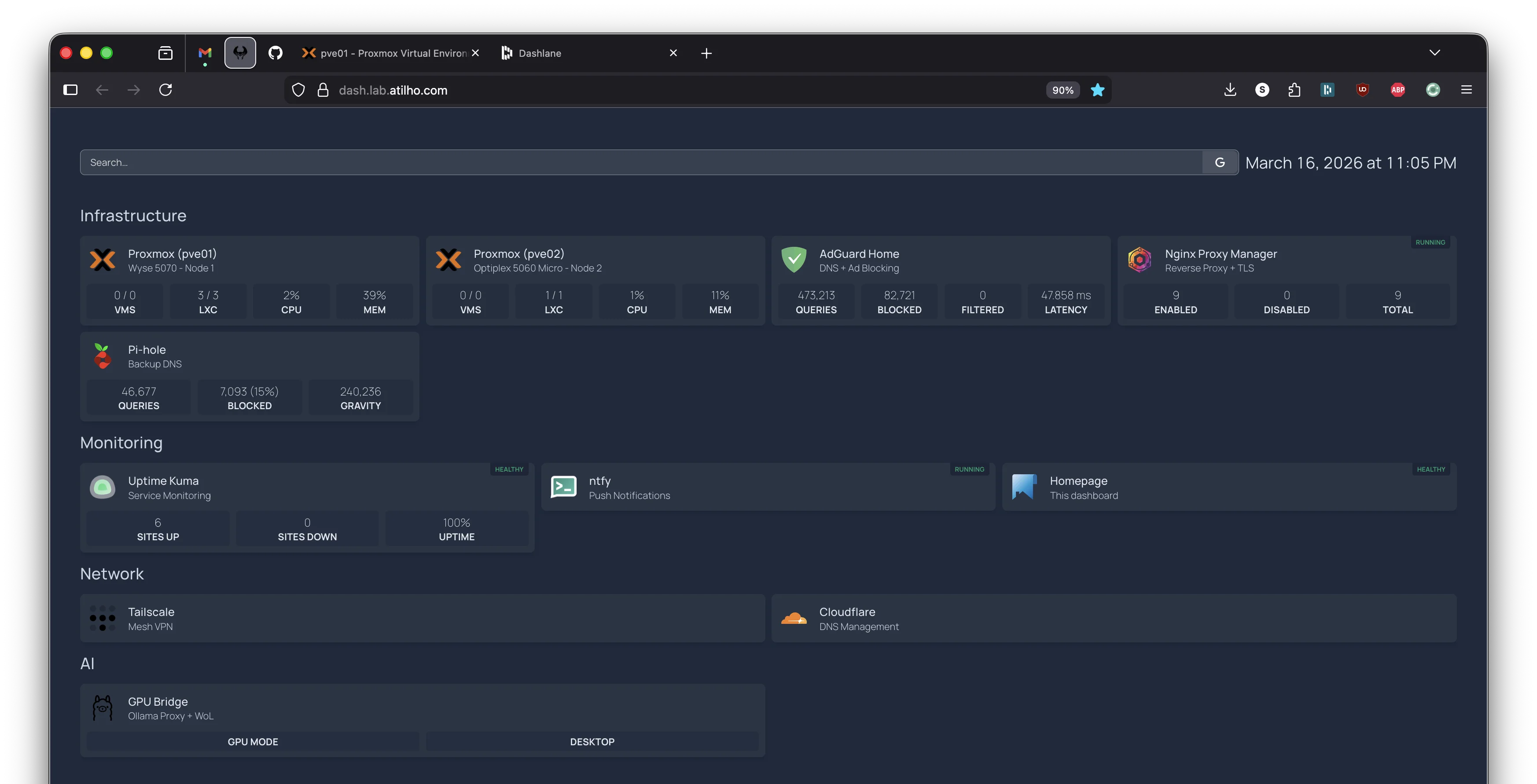
6.3 - Update Homepage Dashboard
SSH into CT 101 on the Wyse and add the GPU bridge to Homepage:
In docker-compose.yml, add:
HOMEPAGE_VAR_GPU_BRIDGE_URL: http://192.168.4.7:11434
In services.yaml, add a new section or add to Monitoring:
- AI:
    - GPU Bridge:
        icon: ollama
        href: https://ollama.lab.atilho.com
        description: Ollama Proxy + WoL
        widget:
          type: customapi
          url: /health
          mappings:
            - field: gpu_mode
              label: GPU Mode
              format: text
            - field: ollama_online
              label: Desktop
              format: text
Update settings.yaml to include the new section:
  AI:
    style: row
    columns: 2
Restart Homepage:
cd /opt/homepage && docker compose down && docker compose up -d
Part 7: Test the Full Chain
Time to verify the entire pipeline works end to end.
7.1 - Start From a Clean State
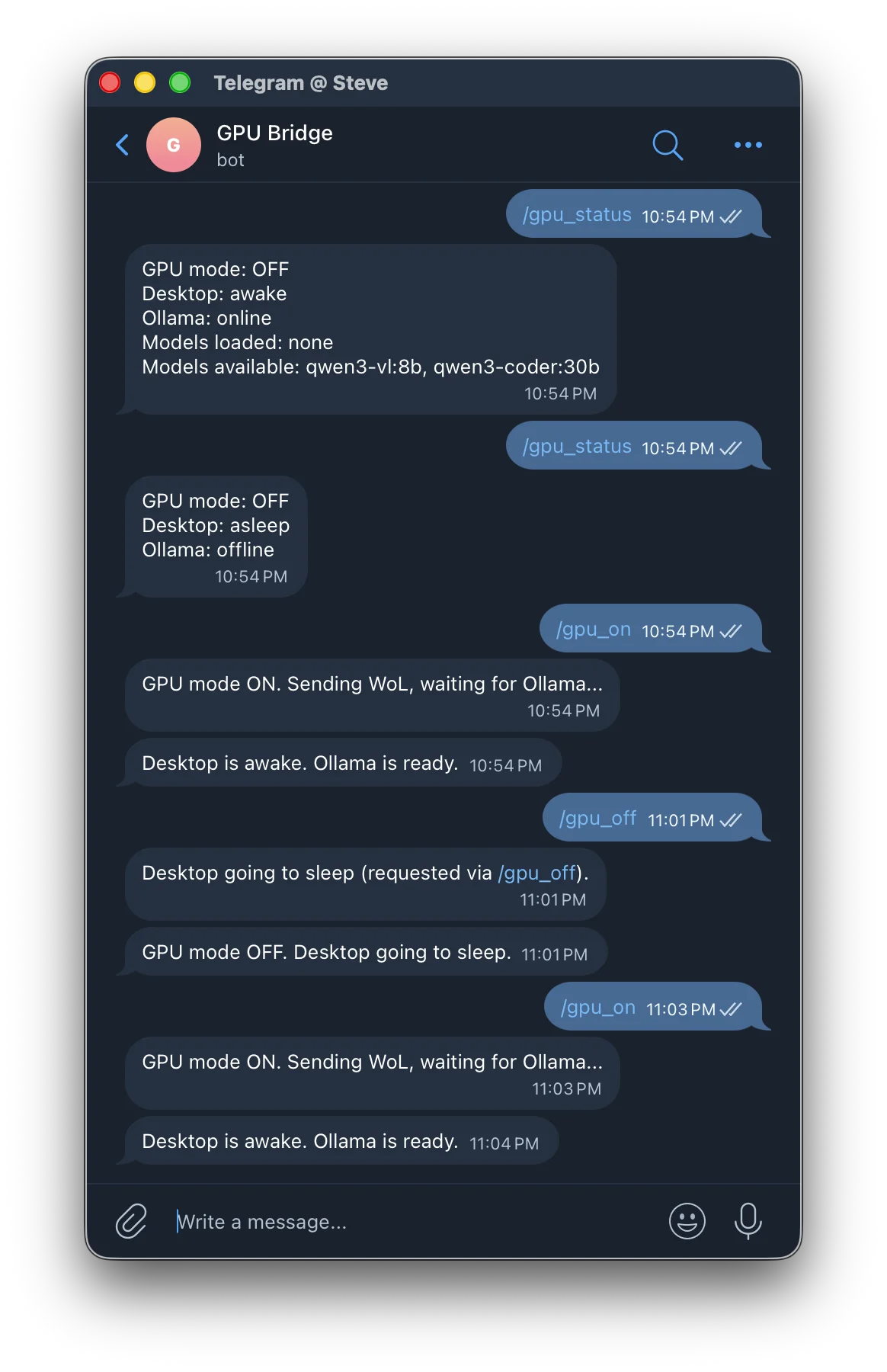
Make sure the desktop is asleep and GPU mode is off. Check with Telegram:
Send /gpu_status to your GPU Bridge bot. You should get:
GPU mode: OFF
Desktop: asleep
Ollama: offline
7.2 - Wake and Infer
Send /gpu_on to the bot. You should see:
GPU mode ON. Sending WoL, waiting for Ollama...
Then after 30-60 seconds:
Desktop is awake. Ollama is ready.
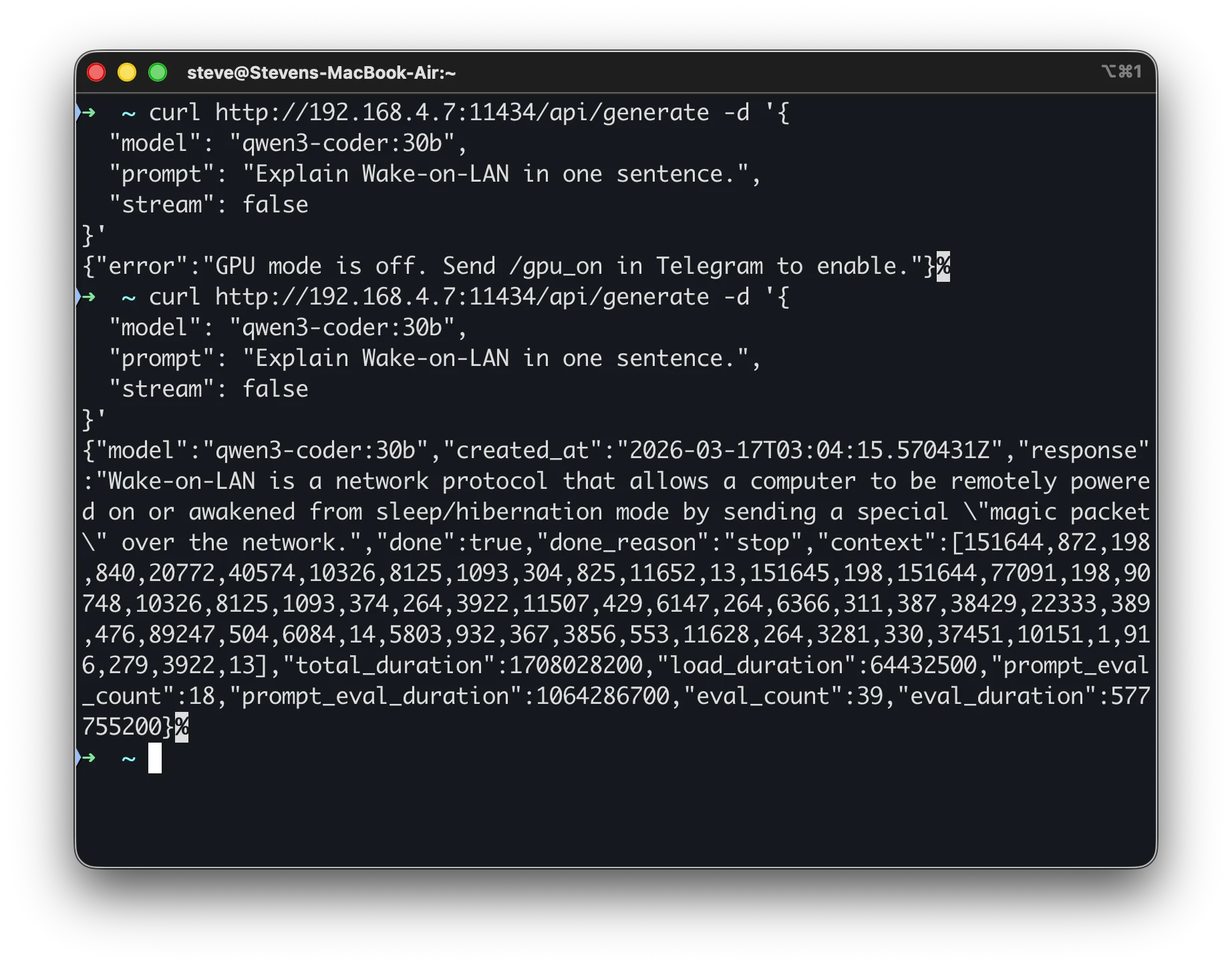
Now send an inference request through the bridge:
curl http://192.168.4.7:11434/api/generate -d '{
  "model": "llama3.2:8b",
  "prompt": "Explain Wake-on-LAN in one sentence.",
  "stream": false
}'
You should get a response from the model, routed through the bridge to the desktop GPU.
7.3 - Test Sleep
Send /gpu_off to the bot. You should get:
GPU mode OFF. Desktop going to sleep.
And a second message from the idle timer:
Desktop going to sleep (requested via /gpu_off).
Verify the desktop is actually asleep (monitor off, fans stopped).
7.4 - Test Auto-Sleep
Send /gpu_on to wake the desktop. Then do nothing. After 15 minutes of inactivity (no API requests, no keyboard/mouse activity, no games running), you should get:
Desktop idle for 15 minutes. Going to sleep.
The desktop sleeps, and the next request through the bridge will trigger a fresh WoL cycle.
7.5 - Test While Gaming
Send /gpu_on, then launch a game on the desktop. The idle timer should detect the GPU process and stay awake indefinitely, even with no Ollama requests. When you quit the game and walk away, the 15-minute idle countdown starts.
Part 8: Container Housekeeping
8.1 - Snapshot
Take a snapshot of the new container on pve02:
CT 200: initial-gpu-bridge-setup
Also snapshot CT 101 on pve01 since we modified Homepage’s config:
CT 101: post-gpu-bridge-integration
8.2 - Verify Dashboard and Monitoring
Open https://dash.lab.atilho.com and confirm:
- GPU Bridge shows with the custom API widget
- Uptime Kuma shows the GPU Bridge monitor as green
- The Ollama monitor shows red/down (expected, desktop is asleep)
Troubleshooting
WoL packet sent but desktop doesn’t wake?
The three most common causes:
- ErP Ready / Deep Sleep is enabled in BIOS (cuts standby power to NIC)
- Windows network adapter power management is turning off the NIC during sleep
- Windows Fast Startup is still enabled (hybrid shutdown prevents WoL)
Test WoL manually from any machine on the LAN:
wakeonlan -i 192.168.7.255 A4:B1:C2:D3:E4:F5
If that doesn’t work, the issue is on the desktop side, not the bridge.
If WoL works right after sleep but stops working after about 60 seconds, your router (eero, mesh systems) is flushing the ARP entry for the sleeping device and stops forwarding broadcasts to that port. Put a network switch between the router and the desktop. See Part 1.7 for the full explanation.
Ollama not accessible from the network?
Check three things:
- Is “Expose Ollama to the network” enabled in Ollama’s settings? (If running as a service, check that NSSM has
OLLAMA_HOST=0.0.0.0set:C:\Tools\nssm.exe get OllamaService AppEnvironmentExtra) - Is the firewall rule active?
Get-NetFirewallRule -DisplayName "Ollama API"in PowerShell - Is Ollama actually running? Check the service:
C:\Tools\nssm.exe status OllamaServicein PowerShell, orcurl http://localhost:11434/api/tagsfrom the desktop itself
Ollama responds but models list is empty?
The NSSM service runs as the SYSTEM account, which has a different home directory than your user. Ollama can’t find your models because it’s looking in the wrong place. Fix by setting the OLLAMA_MODELS path in NSSM:
C:\Tools\nssm.exe stop OllamaService
C:\Tools\nssm.exe set OllamaService AppEnvironmentExtra OLLAMA_HOST=0.0.0.0 OLLAMA_MODELS=C:\Users\<your-username>\.ollama\models
C:\Tools\nssm.exe start OllamaService
Replace <your-username> with your Windows username. This points the service at your actual model directory.
Bridge returns 503 “GPU mode is off”?
This is working as intended. Send /gpu_on in Telegram first. The bridge won’t wake the desktop or forward requests unless GPU mode is explicitly enabled.
Bridge returns 504 “Desktop did not wake within timeout”?
The WoL packet was sent but Ollama didn’t respond within 90 seconds. Either:
- The desktop didn’t actually wake (WoL issue, see above)
- The desktop woke but Ollama didn’t start (NSSM service not installed or not set to auto-start)
- The desktop woke but a firewall is blocking port 11434
SSH or walk over to the desktop and check.
Telegram commands not working?
- Is the bot token correct in
config.py? - Is the chat ID correct? (It’s a number, not a string with @)
- Did you send
/startto the bot first? - Check the bridge logs:
journalctl -u gpu-bridge -f
Desktop auto-sleeps while I’m using it?
The idle timer checks for keyboard/mouse activity and GPU processes. If you’re actively using the desktop, the idle seconds counter resets constantly and auto-sleep should never trigger. If it’s sleeping anyway:
- Check that the idle timer script is detecting your input device correctly
- Add your game/app to the
$GpuProcesseslist if it’s not already there - Increase
$IdleMinutesif 15 minutes is too aggressive
Desktop never auto-sleeps?
The idle timer only runs when GPU mode is “on” according to the bridge. Check that:
- The timer can reach the bridge:
curl http://192.168.4.7:11434/healthfrom the desktop - The bridge is returning
gpu_mode: true - The scheduled task is actually running: check Task Scheduler
Maintenance Cheatsheet
| Task | Command / Location |
|---|---|
| Wake desktop | Telegram: /gpu_on |
| Sleep desktop | Telegram: /gpu_off |
| Check status | Telegram: /gpu_status |
| Bridge logs | journalctl -u gpu-bridge -f (on CT 200) |
| Restart bridge | systemctl restart gpu-bridge (on CT 200) |
| Test Ollama directly | curl http://192.168.5.88:11434/api/tags |
| Test bridge health | curl http://192.168.4.7:11434/health |
| Pull a new model | ollama pull <model> (on the Windows desktop) |
| List loaded models | curl http://192.168.5.88:11434/api/ps |
| Restart Ollama service | C:\Tools\nssm.exe restart OllamaService (on desktop, admin PowerShell) |
| Check Ollama service status | C:\Tools\nssm.exe status OllamaService (on desktop) |
| Windows idle timer logs | Check Task Scheduler > GPU Idle Timer > last run result |
| Manual WoL test | wakeonlan -i 192.168.7.255 A4:B1:C2:D3:E4:F5 (from pve02) |
What’s Running Now
| Layer | Service | Internal Access | HTTPS Access |
|---|---|---|---|
| Hypervisor | Proxmox VE (pve01) | 192.168.4.2:8006 |
https://pve01.lab.atilho.com |
| Hypervisor | Proxmox VE (pve02) | 192.168.4.6:8006 |
https://pve02.lab.atilho.com |
| CT 100 | AdGuard + Unbound | 192.168.4.3:80 |
https://adguard.lab.atilho.com |
| CT 101 | NPM, Uptime Kuma, ntfy, Homepage | 192.168.4.4 |
https://*.lab.atilho.com |
| CT 200 | GPU Bridge + Telegram Bot | 192.168.4.7:11434 |
https://ollama.lab.atilho.com |
| Desktop | Ollama (on-demand) | 192.168.5.88:11434 |
via GPU Bridge |
| Raspberry Pi | Pi-hole + Unbound | 192.168.4.118:80 |
https://pihole.lab.atilho.com |
| Tailscale | All services on tailnet | 100.x.x.x |
Same HTTPS URLs remotely |
The homelab now has on-demand GPU inference. Send a Telegram message, wait 30 seconds, and a 30B parameter model is ready to answer questions, write code, or power agent workflows. When you’re done, it goes back to sleep and costs nothing. The 5060 handles the orchestration, the desktop provides the muscle, and Telegram ties it all together.
What’s next: The consumers. n8n for workflow automation and OpenClaw for Telegram-driven homelab management, both wired into the GPU bridge as their AI backend. That’s Part 6.